Sharing your screen in Zoom
How to share so the prospect sees the deck — and never your speaker notes,
the Ask RoBart-0 assistant, or Customize Pitch.
The one rule
Share the deck's browser window — never your whole screen. Your pop-outs are separate windows, so a window share can't show them.
How it works
Your screen
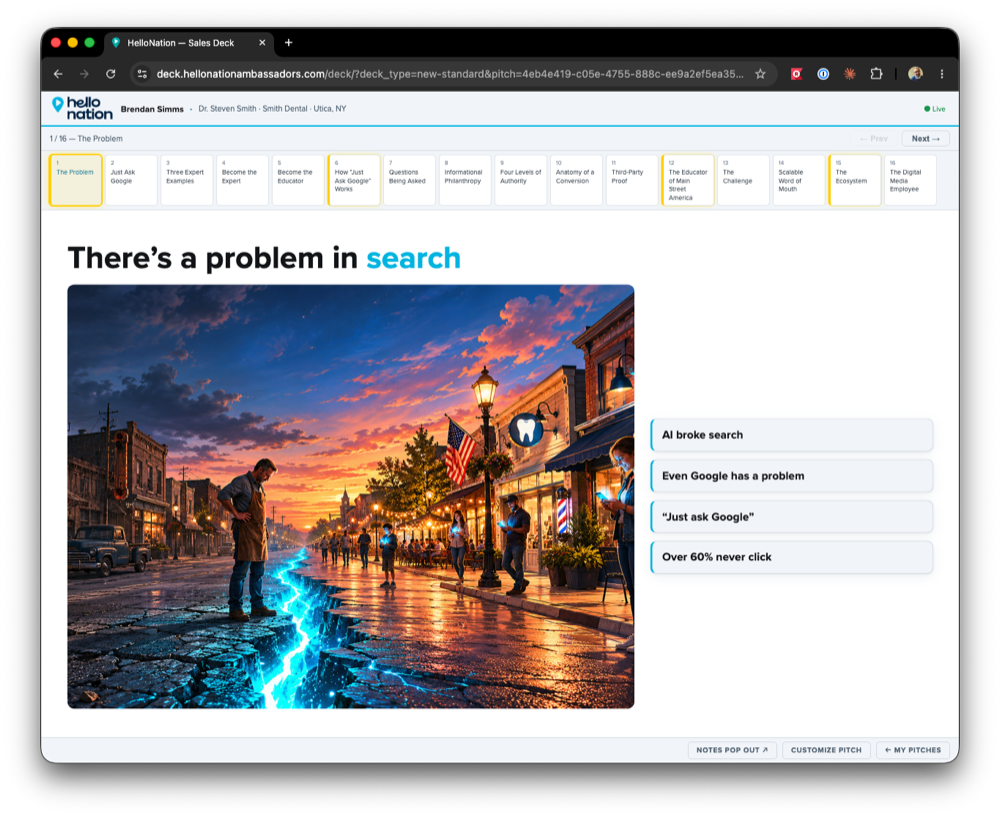
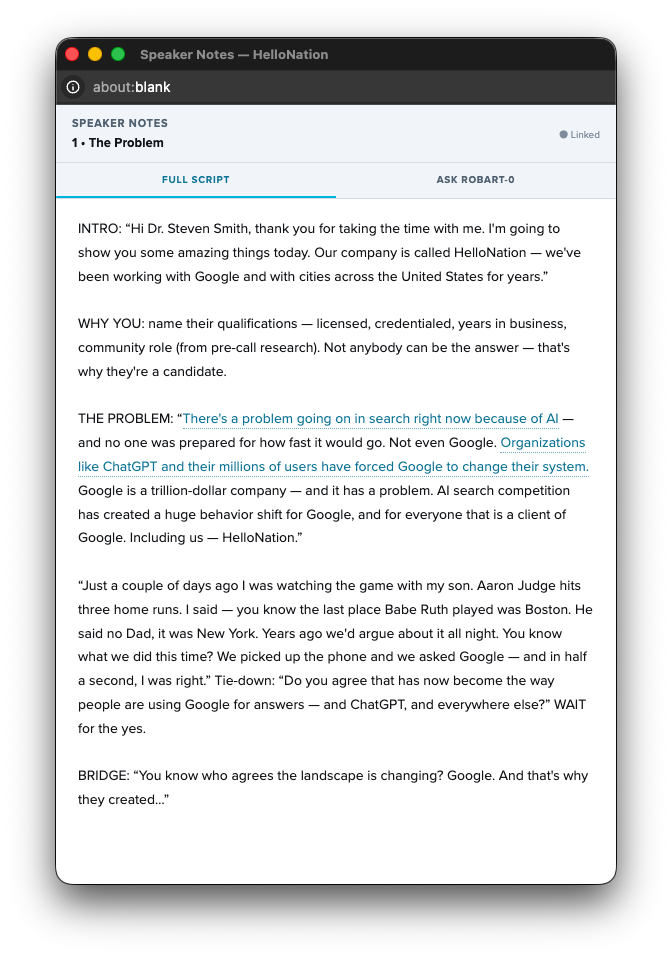
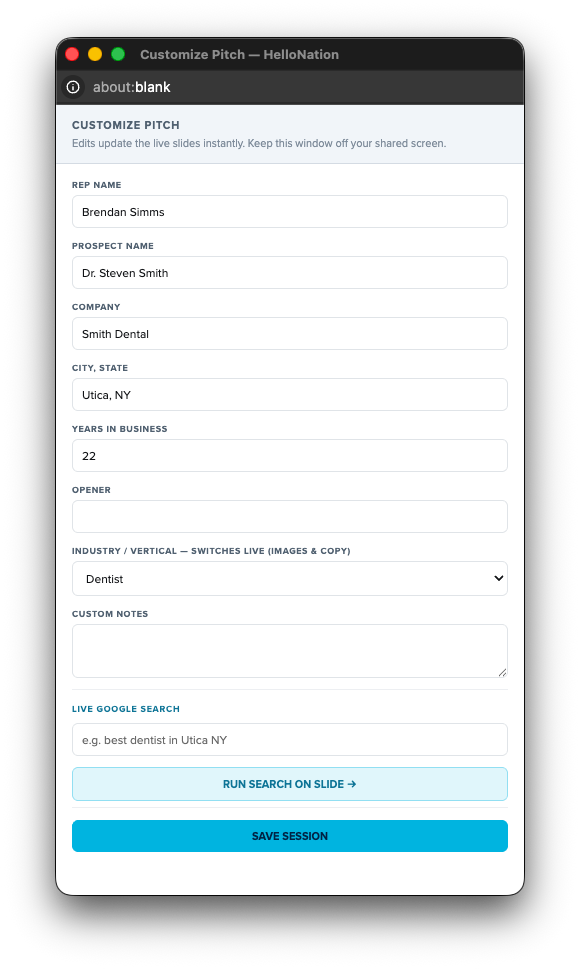
Deck window — sharedPop-outs — never shared
→
What the prospect sees
Only the deck window — even when your notes are sitting right on top of it on your screen.
The workflow
1
Set up before you share
Launch your pitch from the portal so the deck is open in its own browser window. Then open your pop-outs from the deck's bottom bar: Notes Pop Out ↗ and, if you need it, Customize Pitch. Each one opens as its own separate window.
First time on a machine, the browser may block the pop-out — click the blocked-pop-up icon in the address bar, choose "Always allow pop-ups" from this site, then click the button again.
2
In Zoom, click Share Screen
The green Share Screen button in the middle of the Zoom toolbar. Zoom opens a picker showing your screens and every open window.
3
Pick the deck window — never a desktop
In the picker, go to Application windows and choose the Chrome window titled HelloNation — Sales Deck. Turn on Share sound and Optimize for video sharing, then click Share.
Never pick a desktop. Anything under "Entire screen" shares your whole monitor — speaker notes, email, everything. Here Desktop 1 is selected: this is the mistake to avoid.
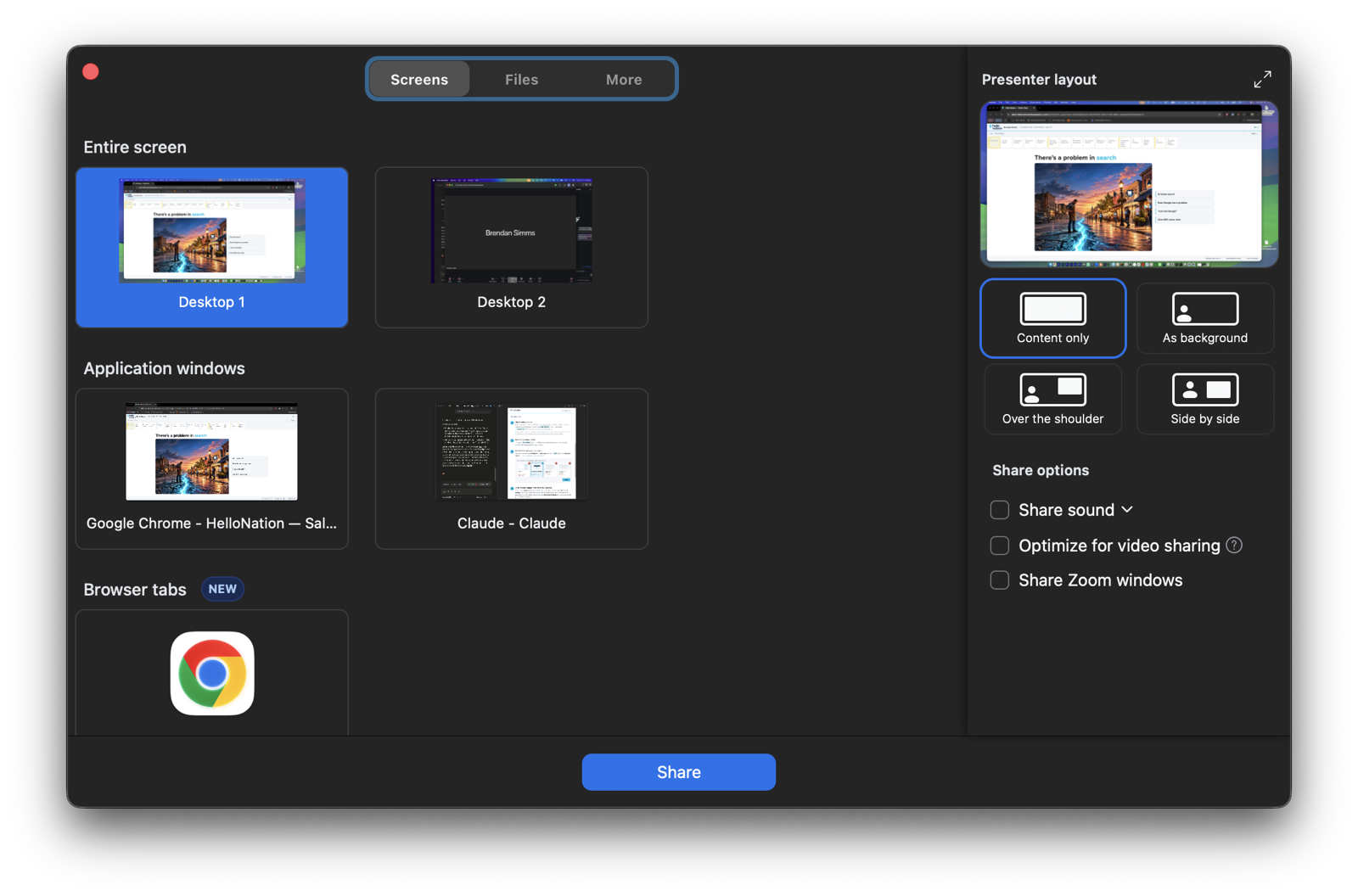
Share this one. Under "Application windows", the Chrome window titled HelloNation — Sales Deck — only that window goes to the prospect.
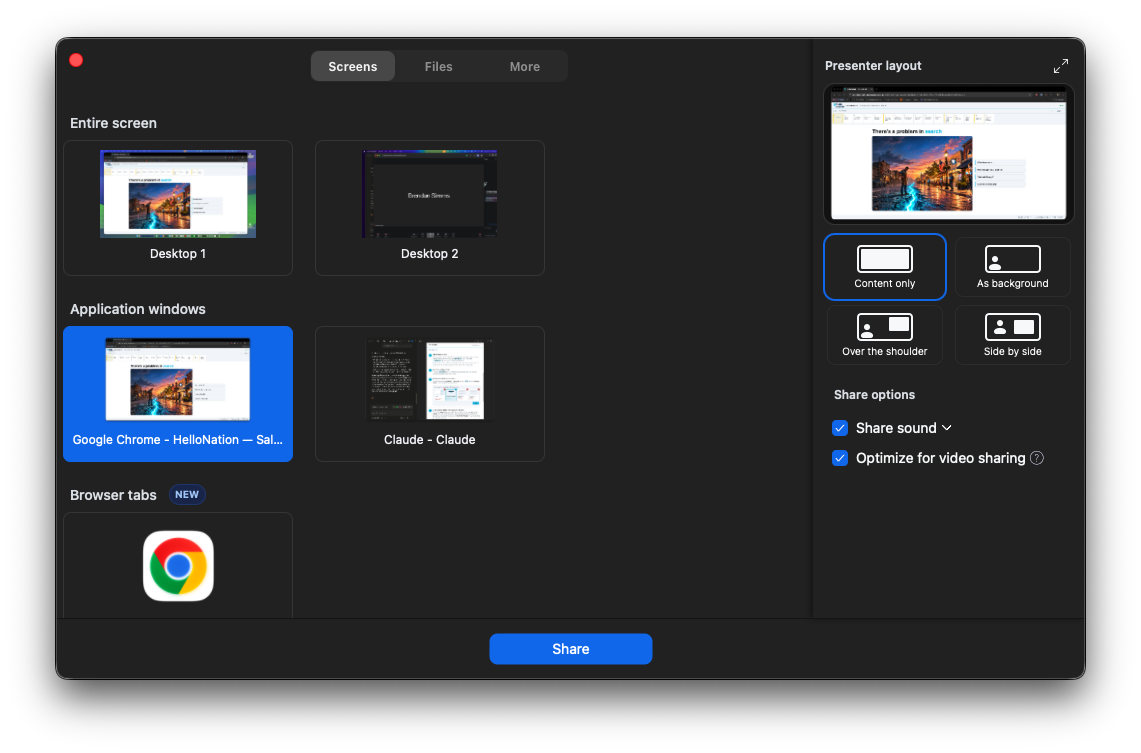
Before you click Share — turn both boxes on.
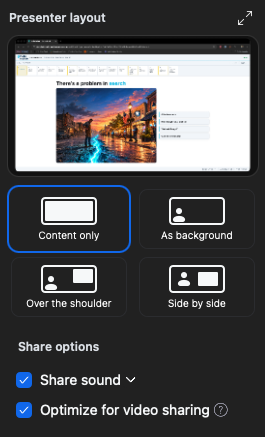
Under Share options, check Share sound and Optimize for video sharing. Without them, video slides play choppy and silent on the prospect's side. Zoom remembers these between meetings — but glance at them every time you share.
4
Check the green border, then arrange your windows
Zoom draws a green border around what's being shared — confirm it wraps only the deck window. Now put your notes wherever you like: a second monitor is nice, but not required. Because it's a window share, your notes can sit right on top of the deck on your screen and the prospect still won't see them.
What the prospect sees — and what they never see
✓ They see
- The slides and everything inside the deck window
- In-slide popups — the click-to-reveal context boxes (that's the point of them)
- The live search demo as you type in it
- Your cursor while it's inside the deck window
✕ They never see
- Speaker Notes window — including the Ask RoBart-0 assistant tab
- Customize Pitch window
- Your desktop, other apps, email, or chat
- System notifications that pop up outside the deck window
Watch out for
!
New tabs in the deck window ARE visible. A tab is part of the shared window. If you need to look something up mid-pitch, use the Ask RoBart-0 tab in your Speaker Notes window — or any other window — never a new tab next to the deck.
!
Don't minimize the deck window while sharing. A minimized window can freeze or go black for the prospect. If you need it out of the way on your screen, move your pop-outs on top of it instead — they won't show.
!
Started a share with the wrong thing? Click New Share (or stop and re-share) and pick the deck window. Don't try to fix it live by moving windows around — the prospect sees all of it.
!
Open your pop-outs before or after sharing — both are safe. A window share only ever shows the one window you picked, so a pop-out opened mid-pitch stays private too.